
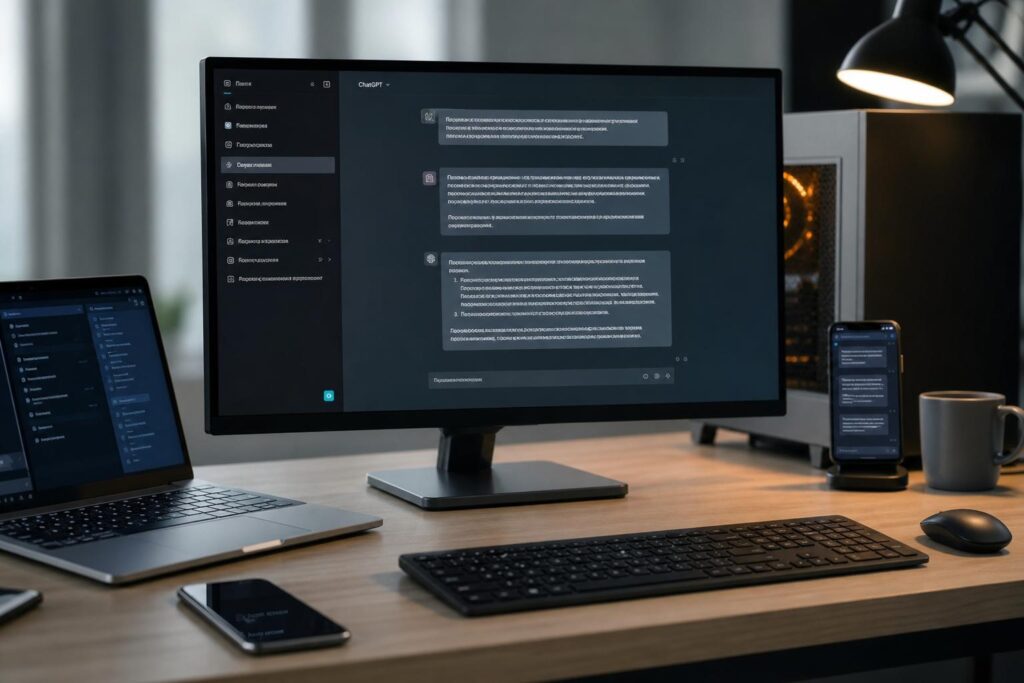
If you’ve ever wished ChatGPT felt less like a website and more like a native tool that’s always at your fingertips, you’re the audience for this walkthrough. We’ll unpack what the desktop app changes, how to install it safely, where it shines, and where a browser tab still does the job. Along the way, I’ll share real workflows that moved me from occasional dabbler to daily user—and a few cautionary notes so you skip the avoidable snags. Think of this as a clear-eyed take on Десктопное приложение ChatGPT: установка и обзор (приложение ChatGPT для компьютера), grounded in practice rather than hype.
What the desktop app actually changes
The desktop version trims the distance between your thought and a working prompt. Instead of hunting for a tab, you summon a compact window, drop in a file or capture a quick screenshot, and get on with your task. That shift—from “let me open a site” to “let me ask right now”—sounds small, but it matters in the same way a reliable keyboard shortcut changes how you write.
There’s also a tactile difference. Files drag in cleanly, voice input starts with one click, and the app can float over your workspace when you need a quick nudge or summary. It feels less like a destination and more like a desk tool, the same way a calculator app differs from a calculator web page.
Under the hood, you’re still talking to cloud models. The app is not a local AI engine. That’s good for capability and updates, and it means your network and privacy settings still matter. But the native layer adds convenience features that are hard to replicate smoothly in a browser alone.
Quick status: platforms and availability
OpenAI offers an official desktop app for macOS. It integrates with system permissions for microphone, camera, and screen capture, and it supports the familiar sign-in flow you already use on the web. If you’re on a recent Mac, you can install, sign in, and keep working within a few minutes.
On Windows, OpenAI has signaled a desktop experience as well. Availability can vary by region, plan, and release stage, so the safest approach is to check the official OpenAI site or your account dashboard. If you don’t see a native download yet, you can still create a near-native window via a progressive web app in Edge or Chrome, which behaves like a standalone application on the taskbar.
If you’re choosing between now and later, here’s the short version: Mac users get a polished native app today; Windows users should verify official availability and can fall back to a PWA while waiting. Either way, the core interaction—ask, iterate, attach files—remains the same.
| Platform | Official app | Fallback | Notes |
|---|---|---|---|
| macOS | Yes | Browser or PWA | Native features include voice, screen capture, and quick window summon. |
| Windows | Check OpenAI | PWA in Edge/Chrome | Availability may depend on rollout; verify the official source before downloading. |
Safety first: downloading and verifying the app
Malicious lookalikes love a popular name. Only download from the official OpenAI website or your account’s trusted links. Avoid third-party “mirrors” or bundled installers that promise tweaks or “enhanced” features—those are red flags.
After downloading, make sure the app is code-signed by OpenAI. On macOS, the system will warn you if the signature is missing or invalid. On Windows, stick with the official installer and, if provided, confirm the publisher details in the installer dialog. These simple checks prevent headaches later.
If you work on a managed device, ask your IT team whether an approved package exists. Many organizations maintain a vetted catalog and prefer that route for compliance reasons.
System requirements and permissions
You don’t need a powerhouse machine to run the app; the heavy lifting happens in the cloud. What you do need is a stable internet connection and a recent operating system version that supports modern app security and permissions. The app handles audio and media smoothly on mainstream hardware.
Expect to grant microphone access if you use voice, camera access for image input or video-based prompts, and screen recording permission if you capture parts of your display for context. You can change your mind later in system settings, and the app should handle permission changes gracefully.
Enterprise users may see extra prompts or restrictions, especially around screen capture and file handling. Those policies are normal in regulated environments and usually come from your company’s management profiles rather than the app itself.
Installation on macOS: ChatGPT для Mac
Installing ChatGPT для Mac is straightforward. Download the official installer, open the package or disk image, and move the app to your Applications folder. If macOS asks for confirmation because the app was downloaded from the internet, approve it after verifying the developer signature reads OpenAI.
On first launch, sign in with your OpenAI account. You’ll see prompts to enable notifications, voice input, or screen capture when you use those features for the first time. I recommend allowing notifications; short, timely nudges—“your file has been summarized”—save you from hovering over a chat window.
In settings, look for a global shortcut that summons the app from anywhere. Pick something you won’t accidentally hit but that your fingers can learn. That one choice turns the app from “another icon” into a fast lane for ideas.
Installation on Windows: status, options, and a solid PWA
If you see an official Windows download on OpenAI’s site, install it like any reputable desktop app: run the installer, confirm the publisher, follow the guided steps, and sign in. If the Microsoft Store lists the app, that’s an equally safe path; stores add sandboxing and familiar update channels.
When an official app isn’t available in your region or plan, a PWA is your friend. In Microsoft Edge, open chat.openai.com, click the browser menu, and choose “Apps” then “Install this site as an app.” Chrome offers a similar option under “Save and share” or “Install ChatGPT.” You’ll get a taskbar icon, its own window without tabs, and optional auto-start behavior.
This option handles 90% of daily use. You lose a few native touches—like a system-wide shortcut or deeper capture integration—but gain a clean, focused window on Windows right now. Many teammates I’ve worked with stick to this until their organization green-lights an official installer for ChatGPT для Windows.
First run: sign-in, preferences, and the quick-summon habit
After sign-in, the app typically asks whether you want to enable voice, notifications, and a keyboard shortcut to pop it open. Start with notifications and the shortcut; you can test voice later. The goal is to make the app reachable in under a second without cluttering your desktop.
Set a neutral theme to keep the interface calm, especially if you use it for long writing sessions. I also toggle “keep window on top” only for brief research sprints, then turn it off. A persistent window is useful for reference, but it can also add visual noise.
Finally, check the data controls in settings. If you’re on a personal account and want to disable training on your conversations, look for the option that governs whether your chat data is used to improve models. Teams and enterprise plans often give admins control here; when in doubt, ask.
Core features that make the app worth installing
Speed and reach are the two headliners. With a global shortcut, you can open a compact prompt box over whatever you’re doing, ask a question, and close it with your answer safely copied. That cycle treats ChatGPT like a tool rather than a place, which makes a surprising difference to your flow.
Multimodal input is the other star. Drag a PDF, screenshot an error, drop a brief voice note, or paste a code snippet—the app clears friction across formats. Those small reductions make it more natural to ask “Could you explain this stack trace?” or “Summarize this meeting note and extract action items.”
Finally, the app handles ongoing conversations well. Pinned threads keep reference material nearby, and you can create dedicated chats for projects: architecture review, hiring pipeline, release notes. Each thread acts like a small workspace with its own context.
Fast capture: screenshots and context on tap
The desktop app can capture a region of your screen and attach it to your message. It’s invaluable for pointing at exactly what’s wrong: “See the border radius on this button?” or “What does this CLI output suggest?” You cut out the guesswork that text-only prompts sometimes create.
On macOS, the first capture triggers a system permissions prompt. Allow it, and you’re off. If you ever revoke that permission, the app will ask again when you try a new capture, so you stay in control.
Drag-and-drop that actually feels native
Drop files from Finder or Explorer straight onto the chat window. For docs and slides, I often ask for a one-paragraph executive summary, then drill down: “What’s risky here?” or “Which three slides need the clearest visuals?” The app responds fast enough to sit alongside your editor rather than replace it.
For code, I prefer to paste snippets and logs rather than upload entire repos. That keeps the conversation focused, and it’s better for privacy. If I need a broader view, I zip a scrubbed subset of files with sensitive tokens removed and ask for analysis across that set.
Voice when your hands are busy
Voice input is great for quick notes—drafting a follow-up after a call, capturing an idea before it evaporates, or practicing a pitch out loud. The app’s mic toggle is one click away, and the transcript appears alongside the response so you can spot misunderstandings quickly.
I like it most for language practice: “Play the role of a patient editor; I’ll talk for two minutes, then give me three fixes and one compliment.” It feels more like a conversation and less like homework, which helps consistency.
Snappy clipboard flow
Even if you never touch voice or screenshots, the clipboard loop is worth it: open, paste, ask, copy, close. No tab juggling, no mouse aim. After a week or two, you start consulting the model for micro-decisions—naming a function, validating a regex, or editing a two-sentence intro—without derailing your focus.
That tiny loop also helps you edit your own work faster. Ask for a tighter paragraph, a stronger verb, or a clearer comparison. Accept the parts that ring true, ignore the rest. You stay in charge, the app stays out of the way.
Working online, not offline
The app depends on an internet connection. Models live in the cloud, and that’s where your prompts go. If you’re offline, you can read cached history, but you won’t get new answers until the network returns.
If your connection is spotty, keep your prompts short and specific to limit retries. For long uploads, wait for a stable connection or use smaller attachments in sequence. A few small, well-aimed questions usually outpace a single sprawling prompt anyway.
Privacy, security, and data controls
Treat the app like any productivity tool that handles sensitive content. Only share what you’re comfortable sending to a cloud service, and scrub credentials or personal data before uploading logs or screenshots. If you need to discuss protected information, consult your company’s policy first.
OpenAI provides settings that govern whether your chats contribute to model training on personal plans. Team and enterprise tiers typically offer stricter data handling, dedicated privacy guarantees, and admin controls. If you’re in a regulated industry, push for the plan that matches your compliance obligations.
On the OS side, you remain in control. Revoke mic, camera, or screen permissions anytime in system settings. If you’re troubleshooting something sensitive, use window-only capture and crop to the relevant area. It’s a habit that pays off.
Performance and resource use
The desktop app is light on CPU and memory compared to heavy development tools. You may notice brief spikes during file processing, but the demand is far lower than anything like a local model. Most of the time, network latency, not compute, dictates how fast you see a response.
Voice and media streaming can nudge battery usage upward on laptops. If you’re traveling, switch to text for longer sessions, or plug in during voice-heavy work. As with any app, keeping a dozen large chats open can add a small memory overhead—archive or close what you don’t need.
Real-world workflows that stick
My first daily habit: PDF triage. I drop a 20-page spec and ask for a short brief with two risks and one open question. That answer becomes my kickoff note in the project channel, and I chase the open question with the author right away. It cuts a day of “getting up to speed” to under an hour.
Second: bug sleuthing. I paste the error block, attach a cropped screenshot, and ask for three hypotheses ordered by likelihood. Then I run the first hypothesis and reply with the new trace. That back-and-forth beats rubber-ducking alone, and the structure keeps me honest.
Third: meeting cleanup. I feed raw notes or a short transcript excerpt and ask for action items grouped by owner. The desktop app makes this painless because it’s already open next to my notes app; drag, drop, done. I paste the result in our tracker with minimal edits.
Finally: writing sprints. I’ll draft a section, ask for a sharper angle, and invite pushback on weak claims. The goal isn’t to outsource voice—it’s to get a sparring partner that moves fast. The app’s tight loop makes this feel less like “prompt engineering” and more like editing with a friend.
Tips and small habits that pay off
Give each project its own chat thread and title it clearly—“Q3 roadmap edits,” “Release 1.5 notes,” “Hiring scorecards.” It keeps context clean and prevents cross-contamination of files and prompts. Pinned threads act like a rolling knowledge base.
Use short system messages for tone and boundaries: “Be concise and point out risks plainly,” or “Ask one clarifying question before proposing a fix.” Those nudges steer the conversation without adding noise to every prompt. You can keep a few canned starters handy in a notes app.
Keep captures small and precise. If the bug is in the top-left corner, crop to the top-left corner. The model’s good at pattern matching, not mind reading; precision helps it help you. The same holds for logs—share only the relevant window around the error.
- Set a global shortcut you’ll actually remember; your hands should find it without thinking.
- Use notifications for long jobs and turn them off during deep work sessions.
- Prefer pasting code snippets to uploading whole repos for privacy and focus.
- Write prompts in your own voice; clarity beats cleverness every time.
Troubleshooting common snags
If voice input isn’t working, check three places: the app’s audio settings (correct mic selected), your OS privacy settings (microphone allowed), and any conferencing app that might be “holding” the mic exclusively. Quitting the conferencing app often fixes the conflict.
For screen capture failures on macOS, open System Settings, find Screen Recording under Privacy & Security, and ensure the ChatGPT app is checked. You’ll need to quit and relaunch for the change to stick. On managed devices, an admin profile might block this; ask IT if the toggle won’t stay on.
Login loops usually trace back to stale cookies or clock drift. Quit the app, log out in the browser, relaunch, and try again. If you’re behind a corporate proxy, confirm that the required OpenAI endpoints aren’t filtered or rewritten by SSL inspection.
When the app feels laggy, test your network with another heavy page or speed test. If everything else is fast, close unneeded threads and relaunch. It’s rare, but clearing the app cache or reinstalling from a fresh download can resolve a corrupted state.
The PWA path on Windows: fast, tidy, and good enough
While you wait for an official native build—or if your org prefers browser-managed apps—a PWA is an excellent standby. It gives you an icon, a clean window, and tight integration with your taskbar and startup settings. For many users, that’s indistinguishable from a “real” app in day-to-day use.
You can pin the PWA, set it to open on login, and even manage it through some enterprise policies. The barrier to entry is low: two clicks in Edge, and you have ChatGPT parked on your taskbar. If you later switch to the official installer for ChatGPT для Windows, you can remove the PWA without losing your chat history.
Desktop vs. browser: where each shines
The browser excels at quick, occasional use—open a tab, ask a question, close it. It’s also universal, so you never worry about OS versions or update cycles. If you live in your browser already, pinning the web app might be enough.
The desktop app shines in sustained workflows. It makes file handling and capture feel native, offers a summon-on-demand shortcut, and plays nicely with notifications. For people who ask dozens of questions a day and bounce among documents, that smoothness adds up.
| Aspect | Desktop app | Browser/PWA |
|---|---|---|
| Quick summon | Global shortcut and floating window | Switch tabs or use pinned tab |
| File handling | Native drag-and-drop polish | Works, sometimes with extra clicks |
| Screen capture | Integrated region capture | Use OS tools, then upload |
| Notifications | System-native alerts | Browser notifications, less consistent |
| Setup friction | One-time install | No install required |
For teams and IT: rollout, controls, and good defaults
On company devices, package the app through your management tool so users don’t hunt for installers. Pair that with a short guide: where to download, how to sign in, and who to contact for permissions. Include a one-pager on safe data sharing—no secrets in logs, no PII in screenshots without redaction.
Enable SSO if your plan supports it. Centralized authentication reduces account sprawl and makes offboarding cleaner. Many teams also default to turning off training on enterprise data and set clear retention windows to align with internal policy.
Finally, decide whether to allow screen capture and voice features by default. Some groups block them until a need is documented. That’s a reasonable stance in strict environments. In creative or research roles, the benefits often outweigh the risks once guardrails are clear.
Pricing and plan considerations
The desktop app itself doesn’t add a line item—access follows your ChatGPT plan. Free accounts can use the core experience with limits; paid tiers unlock higher usage caps, faster responses at busy times, and team features. If you felt throttled in the browser, the app won’t lift those limits by itself; plan level still governs access.
Teams and enterprise plans bring the admin controls most companies expect: centralized billing, user management, data settings, and support channels. If you’re piloting the tool across a department, factor those controls into your rollout timeline so you don’t patch policies after the fact.
For individuals, the question is simple: does a smoother workflow justify the monthly fee of an upgraded plan? The desktop app makes that value easier to realize because it slides into your day, but the math rests on your use case—writing, coding, research, support, or teaching.
Installation recap: a short, safe checklist
Download only from OpenAI’s official sources, confirm the developer identity, and avoid third-party bundles. Install, sign in, and enable notifications and a global summon shortcut. Grant mic, camera, and screen permissions only if you plan to use those features.
Name your project threads, keep captures precise, and store sensitive material elsewhere. For ChatGPT для Mac, lean on the native capture and drag-and-drop; it’s what makes the app feel fast. For ChatGPT для Windows, use a PWA if you don’t see an official build yet; it gets you 90% of the way there with almost no friction.
If something breaks, check OS permissions first, then network policy, then app cache. Most issues resolve with those three steps. If you’re on a managed device, your IT team is the fastest path around policy roadblocks.
Is the desktop app worth it?
If ChatGPT sits at the edge of your workflow—an occasional helper, a tab among many—the browser will do just fine. But if you ask for help all day long, the desktop app trims dozens of tiny frictions: fewer clicks, faster captures, cleaner file flow. Over a week, that becomes real time and a quieter mind.
For me, the app didn’t change what ChatGPT can do; it changed how naturally I reach for it. A tight shortcut, a quick screenshot, a fast file drop—that’s the difference between “maybe later” and “do it now.” If that sounds like how you work, go ahead with установка десктоп-версии. Just install from the right source, set two or three preferences, and let the tool meet you where your work lives.
And remember: you don’t need to overhaul your process. Start with one habit—a project thread, a PDF triage, a bug hypothesis list. If it saves you ten minutes, keep it. If not, close the window and move on. The best tools disappear into your day; this one can, too, when you set it up with care.
